Gmail Forwarding Risks Explained and How to Stop Them
Gmail Forwarding Risks Explained and How to Stop Them
This article explains Gmail forwarding functionality. It is purely email-based and tactical. The challenge centers on managing internal email workflows. The solution remains email-focused.
Written By:
Cerkl Research Team
Published:
December 22, 2025
Sending employee emails from Gmail?
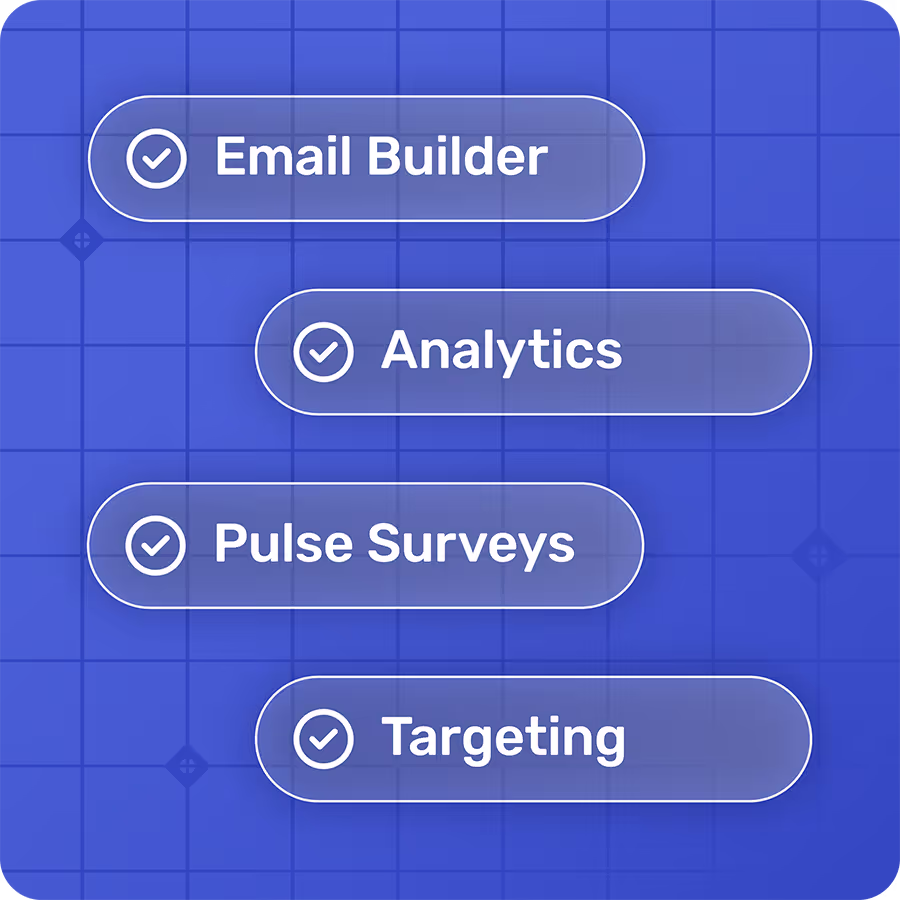
Foundations adds segmentation, engagement analytics, and pulse surveys to the Gmail emails you're already sending. Oh, Foundations is free too!
Forwarding internal emails can expose sensitive information. While convenient, forwarding Gmail messages may unintentionally share company data, HR updates, or compliance-related information with external recipients.
Both automatic and manual forwarding introduce risk. Accidental leaks or deliberate misuse can occur, particularly when employees configure external forwarding rules.
Administrators can limit exposure through policy controls. Gmail admins can disable automatic forwarding, apply compliance rules to block external sending, or restrict forwarding within specific organizational units.
Employee awareness and training are essential. Clear guidance helps employees understand that forwarding internal content externally may violate privacy, company policy, or regulatory requirements.
Secure communication requires more than technical safeguards. Organizations should adopt a consistent communication framework that prioritizes security, confidentiality, and trust across all internal messages.
***
How many of us forward emails without a second thought, or set up automatic replies to keep things moving? It seems to be harmless, even helpful. Yet each message you forward (manually or automatically) or that receives an auto-reply can expose sensitive company information, personal data, or internal insights never meant to leave the organization.
This is becoming a serious concern for internal communicators, especially when HR, compliance, or strategy updates are shared through email. What begins as convenience can quickly become a security vulnerability.
Cybersecurity experts are sounding the alarm. For instance, in its 2025 Threat Detection Report, the cybersecurity research firm Red Canary highlights how attackers exploit the “Email Forwarding Rule.”
“Adversaries routinely create email forwarding rules in compromised email accounts to collect sensitive information while hiding suspicious email activity from legitimate users.” Red Canary
Microsoft also warns users to “control automatic email forwarding from cloud mailboxes,” noting that while the feature can be useful, it increases the risk of data exposure.
“Attackers might use this information to attack your organization or partners.” Microsoft
IBM’s Cost of a Data Breach Report 2025 adds another perspective. While the global cost of insider-related breaches has slightly declined, U.S. organizations continue to experience record highs, rising from an average $9.36 million in 2024 to $10.22 in 2025. While it doesn’t provide specifics relating to email in either its 2024 or 2025 reports, it states that other "expensive attack vectors” include business email compromise, phishing, social engineering, and stolen or compromised credentials.”
In Gmail, forwarding an internal message takes just one click, and that click can have far-reaching consequences. Here’s what every internal communicator should know about controlling, limiting, and preventing issues with internal email forwarding Gmail.
Why You Should Prevent External Forwarding in Gmail
Forwarding internal emails may seem routine. After all, it’s a quick, easy way to share updates or keep others in the loop. But when those messages contain confidential or regulated information, the consequences can be significantly negative.
Internal communicators often send content that was never intended to leave the organization. This includes:
Sensitive HR information such as salary adjustments, disciplinary updates, or performance reviews.
Compliance content like policy changes, security alerts, or confidential disclosures.
Once these messages are forwarded - even unintentionally - control disappears. Confidential details can circulate outside approved audiences, exposing the company to compliance violations or damaging employee trust.
And while forwarding isn’t always malicious, it’s frequently habitual or accidental. Either way, communicators lose oversight of who receives the information and how it’s used.
That’s why preventing external forwarding in Gmail isn’t just a technical measure. It's a communication safeguard that protects people, policies, and the organization’s credibility.
How Gmail Forwarding Works
Gmail gives users two ways to forward emails: manually or automatically. Both are designed for convenience. However, in an organizational context, they can create significant risks.
Manual forwarding: Employees click Forward and send a message to another address, which may include external recipients.
Automatic forwarding: Users set up a rule that sends all incoming mail to another account without review or approval.
While these features make email management easier, they can also bypass security protocols and expose sensitive internal information - deliberately or unintentionally. In environments where HR updates, compliance notices, or executive communications are routinely shared, even one forwarded message can compromise confidentiality and control.
Managing employee lists gets messy - fast.
Foundations lets you target employee emails using roles, departments, or locations without manually updating Outlook or Gmail lists.
Preventing external forwarding is one of the simplest and most effective ways to protect internal information. Gmail’s flexibility allows users to forward messages manually or automatically. However, that convenience can quickly become a vulnerability when sensitive data leaves approved channels.
Organizations are increasingly under pressure to demonstrate responsible data management and regulatory compliance. Accidental or unauthorized forwarding can violate internal privacy policies, breach confidentiality agreements, or even trigger data-protection penalties under frameworks like the European Union’s General Data Protection Regulation (GDPR) or the U.S. Health Insurance Portability and Accountability Act (HIPAA). By taking a few proactive measures in Google Workspace, administrators can significantly reduce those risks while maintaining the flow of legitimate internal communication.
The goal isn’t to restrict collaboration, but to ensure that every message stays in the right hands.
1. Disable Auto-Forwarding for All Users
The first and most comprehensive safeguard is to disable automatic forwarding across the entire domain. Auto-forwarding rules can silently redirect every incoming email to another account (including personal addresses) without the sender or recipient realizing it. This makes it one of the most common and dangerous ways that sensitive data leaves a secure environment.
To do this:
Sign in to the Google Admin Console.
Navigate to Apps → Google Workspace → Gmail → End User Access.
Under Email forwarding, uncheck “Automatic forwarding” to disable it for all users.
Once disabled, employees can still forward individual messages manually when appropriate, but they will no longer be able to create automatic rules that continuously send company mail to an external inbox. This single step can drastically reduce unmonitored data exposure by ensuring that large volumes of mail can’t silently leave your domain and all sensitive information remains within your organization.
2. Use Compliance Rules to Block External Forwarding
If disabling forwarding entirely isn’t feasible, compliance rules provide more targeted control by allowing you to set up conditional safeguards. These rules help detect and manage risky behavior before it leads to a data incident. For example, they can stop messages from being forwarded outside your company’s domain or automatically alert security teams when attempts occur.
To do this:
In the Google Admin Console, go to Apps → Google Workspace → Gmail → Compliance.
Click Configure to create a new rule.
Set conditions to detect forwarding to external domains.
Choose an action - for example, Reject message, Quarantine message, or Notify the administrator.
Optionally, you can configure alerts to inform the security or compliance team whenever forwarding is attempted.
This approach creates a safety net for communication oversight, ensuring that even if employees try to forward messages externally, their attempts are logged, flagged, or stopped automatically.
Ultimately, these automated checks provide visibility and control, helping IT and communications teams quickly respond to potential data-loss events.
3. Disable Forwarding in Specific Organizational Units
Not every department carries the same level of data sensitivity, which means that not all teams need the same level of restriction. Instead of applying a blanket rule across the entire company, Google Workspace allows administrators to tailor settings for each Organizational Unit (OU). This means high-risk departments like HR, Legal, or Finance can have stricter forwarding restrictions while other teams retain limited flexibility. All admins have to do is turn off forwarding for specific groups.
To do this:
In the Admin Console, navigate to the relevant Organizational Unit (OU).
Adjust the Gmail settings to disable automatic forwarding within that OU.
Segmenting forwarding permissions in this way gives organizations the best of both worlds. You have strong protection where it’s needed most and operational freedom where risk is minimal. It’s an ideal strategy for large or distributed organizations, balancing compliance, efficiency, and collaboration.
Ultimately, it offers a balance between security and usability, ensuring that critical functions stay secure without restricting day-to-day communication elsewhere in the organization.
4. Educate Employees About Forwarding Risks
Technology alone cannot eliminate forwarding risks. Awareness is just as important. MTechnology can only go so far. Employee awareness is the final and often the most critical layer of protection. Many forwarding incidents happen not because of negligence, but because people don’t understand the implications of their actions. Reinforcing the “why” behind forwarding restrictions helps employees make better choices and take ownership of information security.
For this reason, it is essential to make sure employees understand that forwarding internal messages externally can violate privacy regulations, data protection laws, or company policy.
Practical steps include:
Hosting short awareness sessions or including a module in annual compliance training.
Adding email disclaimers or visual banners to sensitive communications, reminding recipients not to forward.
Sharing examples of how accidental forwarding can lead to data exposure or reputational damage.
When employees understand why forwarding poses a risk or exposure point, they’re more likely to pause before hitting “Send.” They also become partners in protecting the organization’s integrity and reputation.
Ultimately, building awareness helps shift the forwarding action from being a thoughtless habit to a mindful communication practice.
The Cerkl Broadcast Solution for Secure, Controlled Internal Distribution
Even with Gmail’s admin controls and compliance rules, internal communicators still face the reality that forwarding cannot be fully eliminated at the user level. Cerkl Broadcast was built to close that gap, giving organizations complete control over who can access, view, and share internal content. The platform’s security model combines restricted sharing, automated audience management, and internal-only delivery to protect every message from unauthorized forwarding.
Restrict Sharing and External Access
Cerkl Broadcast ensures messages cannot be forwarded or shared beyond approved audiences. Each message is securely delivered to authenticated users within your internal ecosystem, whether via email, mobile app, Teams, or intranet. Furthermore, sensitive HR or compliance updates stay fully contained inside the organization, preserving confidentiality and trust without relying on manual controls.
Role-Based Audience Management
Audience accuracy is automatic with Broadcast’s dynamic HRIS and Active Directory integration. As roles change, employee lists and permissions update in real time, ensuring the right messages always reach the right people. Communicators no longer need to manage static distribution lists or worry about accidental inclusion of external or former employees.
Built for Confidential Messaging
Whether it’s a leadership announcement, compliance update, or sensitive organizational notice, Cerkl Broadcast keeps communications secure by design. Its internal-only environment eliminates external forwarding entirely, creating a trusted space for transparent, high-stakes communication between employees and leadership.
Gmail vs. Cerkl Broadcast: Email Forwarding Risk
While Gmail provides basic administrative controls, Cerkl Broadcast offers built-in protection purpose-designed for internal communications. The comparison in the table below illustrates how the two platforms differ in managing forwarding risk, audience control, and compliance visibility.
Feature
Gmail
Cerkl Broadcast
External forwarding control
Admin-level only
Built-in, forwarding restricted
Audience targeting
Manual or basic groups
Dynamic sync from HRIS/AD
Confidential message protection
Can be forwarded externally
Internal-only access
Compliance visibility
Limited
Built-in acknowledgements & audit logs
What’s Next?
Cerkl Broadcast’s Foundations Plan gives small and midsize organizations the professional-grade tools they need to communicate securely - for free. It combines intuitive design, automatic audience management, and built-in analytics to help teams send engaging, compliant internal messages without technical setup or risk of forwarding.
What’s included:
Send up to 5,000 branded internal emails per month to targeted audiences.
Add up to three team members with shared access to manage content and insights.
Segment and personalize automatically with dynamic audience syncing from your HRIS or directory.
Expand effortlessly into mobile, Teams, or intranet channels as your needs grow.
Foundations is perfect for communicators who want to maintain message control, strengthen employee trust, and scale securely - all without cost or complexity.
Yes. Gmail allows users to forward messages manually or automatically by creating forwarding rules in settings. However, in Google Workspace, administrators can restrict or disable this option to prevent sensitive information from leaving the organization.
What are the risks of forwarding emails?
Forwarding email in Gmail can expose confidential or personal data to unintended recipients, damaging trust or breaching privacy regulations. Even well-intentioned forwarding can result in compliance violations or uncontrolled data distribution.
How to stop emails from being forwarded in Gmail
Administrators can disable automatic forwarding across all users, apply compliance rules to block forwarding to external domains, or turn off forwarding within specific organizational units. Combined with employee education, these measures significantly reduce forwarding-related security risks.
Did you enjoy this content? Please share it with your internal comms friends and colleagues. Just click on any of the links below.



.avif)





.avif)