This article explains how to create contact groups in Gmail. It focuses entirely on email list management. The problem is email workflow efficiency. It aligns with email-centric solutions.
Written By:
Cerkl Research Team
Published:
October 14, 2025
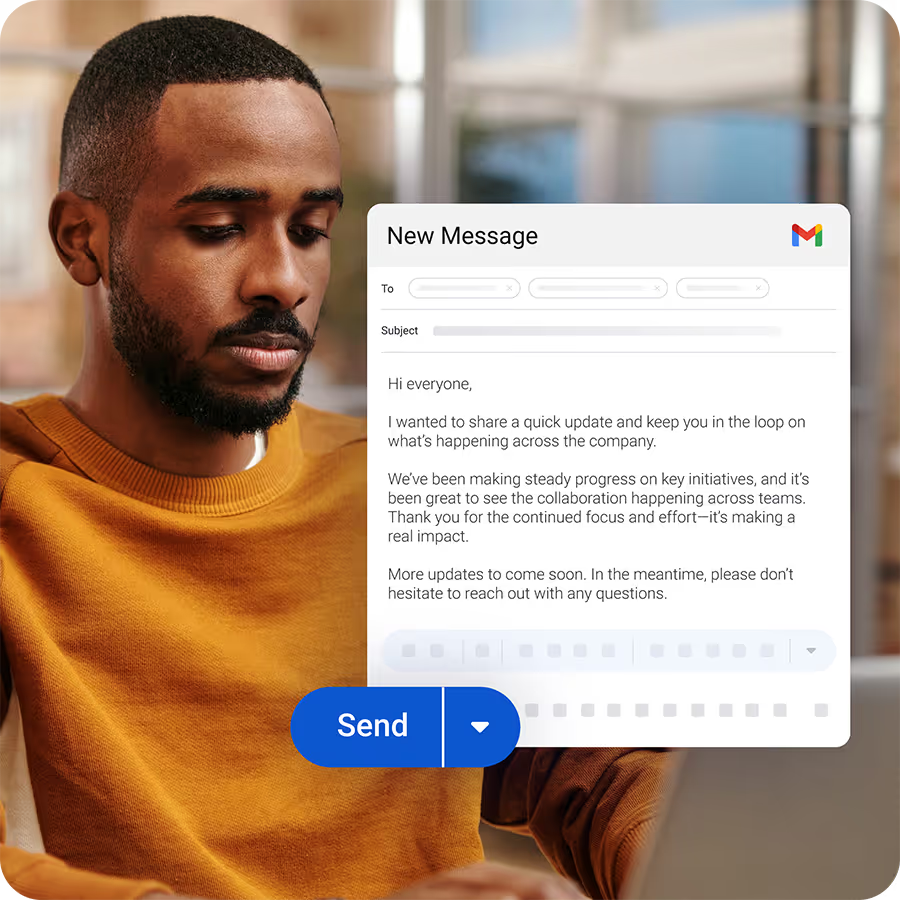
Sending employee emails from Gmail?
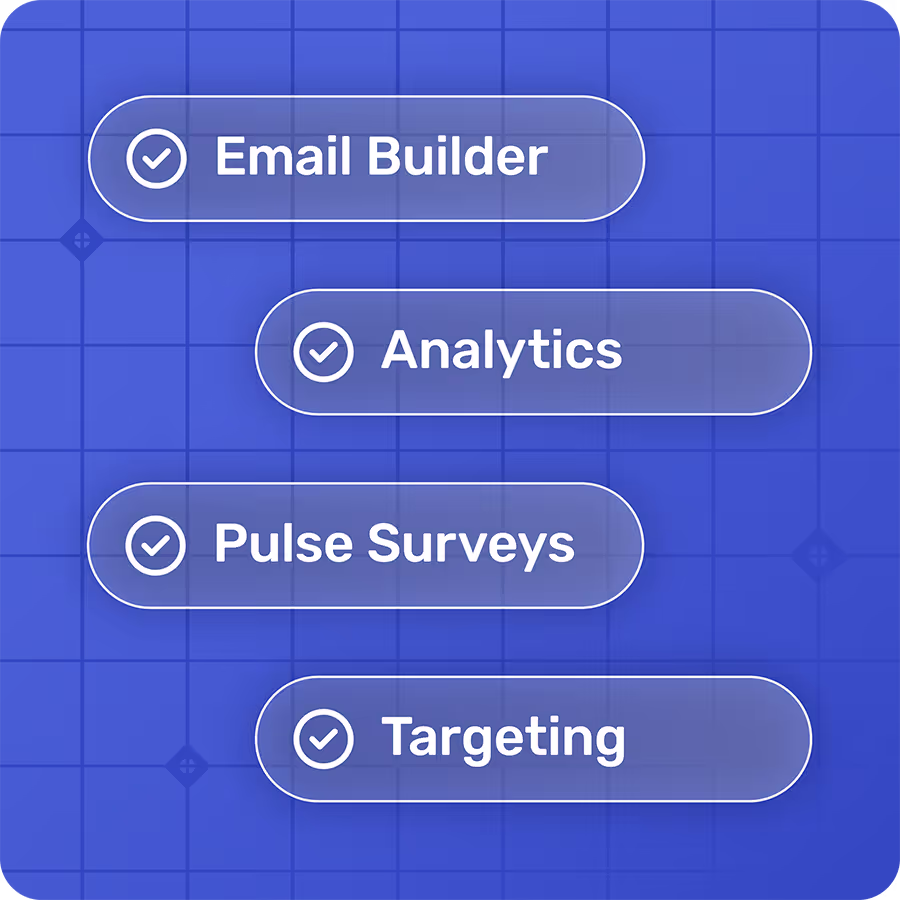
Foundations adds segmentation, engagement analytics, and pulse surveys to the Gmail emails you're already sending. Oh, Foundations is free too!
Fast Facts on How to Create a Contact Group in Gmail
Contact groups simplify group emailing. Instead of entering multiple addresses one by one, you can send to a whole team, department, or interest group identified with a single label.
Contact groups are created in Google Contacts. Gmail doesn’t build groups directly. Users set them up as labels and then use them in the To, Cc, and Bcc fields when composing messages.
Groups are useful for workplace communication. HR can onboard new hires, project managers can update task forces, IT can alert employees, and internal comms leads can reach department heads by using group labels.
Ongoing maintenance is required. Groups must be updated manually to add new members, remove old ones, and ensure accuracy.
Limitations make them best for small teams. Without analytics, automation, or scalability, Gmail contact groups work for simple use cases but not for large, company-wide communication.
In most workplaces, sending group emails is a routine. HR shares onboarding materials, managers send project updates, and various teams get regular reminders. To streamline that, many email systems support contact groups (also known as mailing lists or address lists). They provide a way to bundle contacts under a label so you can message the same set of people quickly next time.
While this approach is common across tools like Gmail, Outlook, and Apple Mail, it’s not without limitations. Contact groups can save time and reduce manual errors, but they don’t have the flexibility and management options offered by more advanced distribution lists. These make group email smarter and more manageable.
Ultimately, email remains central to internal comms, as ongoing global research proves.
Gallagher’s 2025 Employee Communications Report reveals that email is the most used channel for announcements and messages. Leader-to-employee emails are used by 84% of organizations - the highest percentage of all channels used. At 92%, company-to-employee email announcements are even higher. Leader announcements via email are also the most effective (80%). Of the organizations using email for company-to-employee emails, 78% found them to be the most effective channel.
Exclaimer’s The State of Business Email report echoes the fact that organizations rely on email more than ever every year. Based on insights from 4,009 IT leaders from the U.S., UK, Germany, and Australia, it states that a major problem is that email processes are “often managed with outdated processes and insufficient investment.”
“Email isn’t just ‘still there’ - it’s still critical. And it’s under pressure.”
Exclaimer
In this post, we’ll explain how Gmail handles contact groups (via Google Contacts), explore the pros and limitations of that approach, and show how a true distribution-list approach can address the gaps for employee communications.
What Is a Contact Group in Gmail?
A Gmail contact group, also called a contact label, is a feature that enables users to organize multiple email addresses into a single list. Like Google Calendar Invites, Gmail itself doesn’t create groups. Instead, you build and manage them in Google Contacts. Both features rely on Google’s wider suite of tools to extend what Gmail can do.
Once a group is created, sending an email to everyone on that list is as simple as typing the group name into the “To” field of a new message. You can, of course, also type the name of a contact group into the Cc or Bcc fields if you want to copy or blind carbon copy certain contacts in on a message.
The benefit is clear. Instead of manually entering dozens of addresses one by one, you save time and ensure no one important is left out. Contact groups are especially valuable for quick communication with teams, projects, departments, or clubs, where the same group of people needs to be kept informed regularly.
For example, an HR manager might use a contact group to email all new hires with onboarding resources. A project manager could instantly share updates with a cross-functional task force. An IT administrator might notify employees affected by scheduled system maintenance. And an internal communications lead could send a quick update to department heads before a company-wide announcement.
By setting up contact groups, you simplify repetitive communication tasks and reduce the risk of mistakes, keeping everyone aligned and informed. Read on to discover how to create a contact group in Gmail in just four easy steps.
Managing employee lists gets messy - fast.
Foundations lets you target employee emails using roles, departments, or locations without manually updating Outlook or Gmail lists.
Step-by-Step Guide on How to Create a Contact Group in Gmail
Creating a Gmail contact group is straightforward, and it can make team communication far more efficient. Follow these steps to set one up and ensure your messages reach the right people.
Step 1: Open Google Contacts
Start by going tocontacts.google.com. This is where Gmail stores and organizes your contacts. Make sure you’re signed into the correct Google account. If you manage multiple accounts (personal, work, and shared), double-check in the top-right corner; otherwise your new group may end up in the wrong account.
If you don’t see any contacts listed, don’t worry. You can create new ones as you build your group.
Step 2: Create a New Label
In the left sidebar, scroll down until you see “Labels.” Click “Create label.” A pop-up will prompt you to name your label. Choose a name that is clear and descriptive, such as HR – New Hires 2025 or Marketing Project X Task Force.
Good naming conventions save time later, especially if your organization plans to use multiple groups. Avoid vague names like Team 1 or Misc Contacts.
Step 3: Add Contacts to the Label
Select existing contacts from your list or create new ones. To add, check the box next to the names and click the label icon at the top of the screen. Choose the label (name) you created, and those contacts will now be part of that group.
If you need to add people who aren’t yet in Google Contacts, click “Create Contact” and fill in their name and email address. You can assign them to your new label right away.
Keep in mind that Gmail contact groups are static. If someone changes roles, leaves the company, or joins a new project, you’ll need to update the label manually. This makes regular maintenance important.
Step 4: Email the Contact Group from Gmail
Open Gmail and click “Compose”.
In the “To” field, start typing the label name you created. Gmail will auto-suggest it. Select it, and all members of that label will be included.
Everyone in the label will receive the email, but recipients will only see the group expanded into individual email addresses (they won’t see a “group name” in their inbox).
Remember that you can still use “Cc” or “Bcc” if you need to loop in others outside the group or hide certain recipient addresses.
Tips for Managing Gmail Contact Groups in Organizations
We have shown you how to create a contact group in Gmail. Once you’ve created your groups, ongoing maintenance is essential to keep them accurate and effective.
Keep groups updated: Regularly remove outdated contacts and add new members to ensure accuracy. Stale groups can quickly lead to miscommunication, like emailing someone who has left the company or missing a new team member who should be included. It can be time-consuming because it has to be done manually - but it has to be done.
Create different groups: Set up separate labels for teams, projects, or functions to avoid sending irrelevant messages. This helps to prevent email overload and ensures that employees only receive updates that apply to their role.
Use descriptive label names: Clear naming reduces mistakes and helps everyone identify the right group. For example, “HR – New Hires 2025” is considerably more useful than “Team 1” when you’re searching under pressure.
Test before scaling: Send a message to a smaller group first to confirm settings and membership before emailing a large audience. This step is especially valuable if you’re new to using contact groups or managing multiple lists.
Limitations of Gmail Contact Groups
While contact groups are useful, they come with notable restrictions.
Manual upkeep: Gmail contact groups don’t update themselves. As mentioned above, every change in team membership has to be handled manually. This can become time-consuming and increase the risk of sending messages to the wrong people if groups aren’t maintained carefully.
Sending limits: Free Gmail accounts can typically send messages to about 500 recipients per day, while Google Workspace accounts raise that cap to around 2,000. For larger organizations, these limits can quickly become a bottleneck, especially when company-wide messages are required.
No analytics: There’s no way to track opens, clicks, or engagement, making it impossible to measure effectiveness.
Limited scalability: While Gmail contact groups can work reasonably well for small teams or simple use cases, they fall short once communication needs grow. Larger organizations often require dynamic updates, segmentation, and performance tracking that contact groups cannot provide.
When to Upgrade Beyond Gmail Groups
Exclaimer’s report doesn’t mention contact groups, but it does discuss the future of business email. They emphasize that email isn’t disappearing. Rather, it’s evolving. In so doing, it remains “the foundation for formal, high-trust, and high-stakes interactions.” While there are numerous implications involved, ultimately, email isn’t a legacy system that needs to be defended. It’s about modernizing a communications channel that continues to carry critical business value.
This means that organizations need to ensure that IT and internal comms work with up-to-date platforms and processes that they can develop and grow.
“IT leaders are expected to secure the most targeted part of the stack, modernize legacy workflows, maintain compliance, and support brand consistency-often without the tools, automation, or authority to do it effectively.”
Exclaimer
As an example, if your organization needs segmentation, personalization, or analytics to understand message performance, Gmail’s built-in contact groups won’t deliver.
In this case, Cerkl Broadcast has a solution. Here’s what it offers:
Dynamic Sync: Broadcast integrates with HRIS/Active Directory so audiences update automatically.
Audience Management: Advanced targeting ensures the right employees get the right messages.
MyNews Digests: Consolidates and personalizes updates for each employee.
Omnichannel Delivery: Enables you to reach employees where they are - beyond Gmail, through mobile, intranet, or Teams.
Analytics: Allow you to track real engagement with insights into opens, clicks, and audience behavior.
Whether you are contemplating a change of platform right now or not, our FREE internal email CTR Guide, Best Practices and Proven Strategies to Improve Email Click-Through Rates, will help you harness and manage email best practices. It offers actionable tips and proven strategies to boost CTR and will show you how Broadcast simplifies email communication with automated personalization and advanced analytics.
Gmail was never designed for internal comms. Foundations was - and it's 100% free.
Foundations helps internal communicators send targeted employee emails, measure engagement, and collect feedback. No credit card. No setup fees. No contracts.
Open Google Contacts. Select the contacts you want to include, and click the Label icon at the top of the page. From there, you can assign them to an existing group (label) or create a new one.
What’s the difference between a Gmail contact group and a distribution list?
A Gmail contact group is a static list of email addresses stored in Google Contacts, which you must update manually. A distribution list, by contrast, can update dynamically, support permissions, and it often provides analytics and segmentation features.
How to overcome the limitations of a contact group?
You can minimize issues by keeping groups current, naming them clearly, and testing messages before sending to large audiences. For advanced needs like automation, personalization, or analytics, upgrading to a communication platform such as Cerkl Broadcast is the better solution.
Did you enjoy this content? Please share it with your internal comms friends and colleagues. Just click on any of the links below.