Fast Facts About Email Scheduling in Gmail
- A recurring employee email is a message automatically sent at set intervals (daily, weekly, or monthly) to keep employees informed and engaged through consistent communication.
- Gmail’s “Schedule Send” feature allows users to send one-time messages later, making it helpful for planning employee updates, announcements, or reminders in advance.
- Scheduling steps are simple: compose your email, choose “Schedule send,” and select a suggested or custom delivery time. Scheduled messages appear in the “Scheduled” folder until they’re sent.
- However, Gmail has key limitations: it cannot automate recurring sends, run multi-message campaigns, or optimize send times-leaving communicators to manually recreate and resend messages.
- Cerkl Broadcast fills this gap with automated recurring sends, campaign scheduling, AI-optimized delivery, omnichannel distribution, and engagement analytics, allowing internal communicators to save time, improve consistency, and measure impact.
Employee emails remain one of the most reliable ways to connect, inform, and engage teams. Whether it’s a weekly update, a wellness reminder, or a monthly recognition roundup, consistent communication helps employees stay aligned with company goals and feel part of a connected culture.
International email signature specialist company, Exclaimer, states in The State of Business EMail 2025 report, “Email isn’t just “still here”-it’s critical. And it’s under pressure.”
While email continues to anchor a diverse range of industries, business communications globally, it’s often managed with insufficient investment and outdated processes. The report states that while 89% of IT leaders confirm the importance of one-to-one email, 83% of the organizations they drew insights from reported email-related security incidents (48% in the past year). Nearly half (43%) of the IT leaders surveyed believe AI-driven email automation will shape business communication in the next five years.
There’s a lot to consider. However, when messages arrive on a predictable schedule, employees know when to expect important updates. This approach builds trust and improves message visibility.
Recurring employee emails are just one element, and a relatively simple one to address.
A recurring employee email is simply a message that’s automatically sent at regular intervals - daily, weekly, monthly, or on a custom schedule. It’s ideal for routine communications such as newsletters, policy reminders, or project summaries. By automating these sends, organizations save time while ensuring that essential information is delivered consistently and without interruption.
Without doubt, Gmail is one of the most widely used email platforms for both personal and workplace communication. However, while it offers a “Schedule Send” feature, it falls short for communicators who need recurring or campaign-level sends.
This post shows how to schedule emails in Gmail, where it stops short, and how to solve the gap with Cerkl Broadcast.
Writing a great employee newsletter is only half the job.
Foundations makes employee newsletter building a snap with a drag and drop email builder. Plus Foundations helps you target newsletters to the right employees and measure engagement so important updates don’t get ignored. Free. Forever.
Learn more about FoundationsHow to Schedule an Email in Gmail
Email scheduling in Gmail isn’t difficult, although the process you will need to follow on a computer vs. a mobile device will be slightly different.
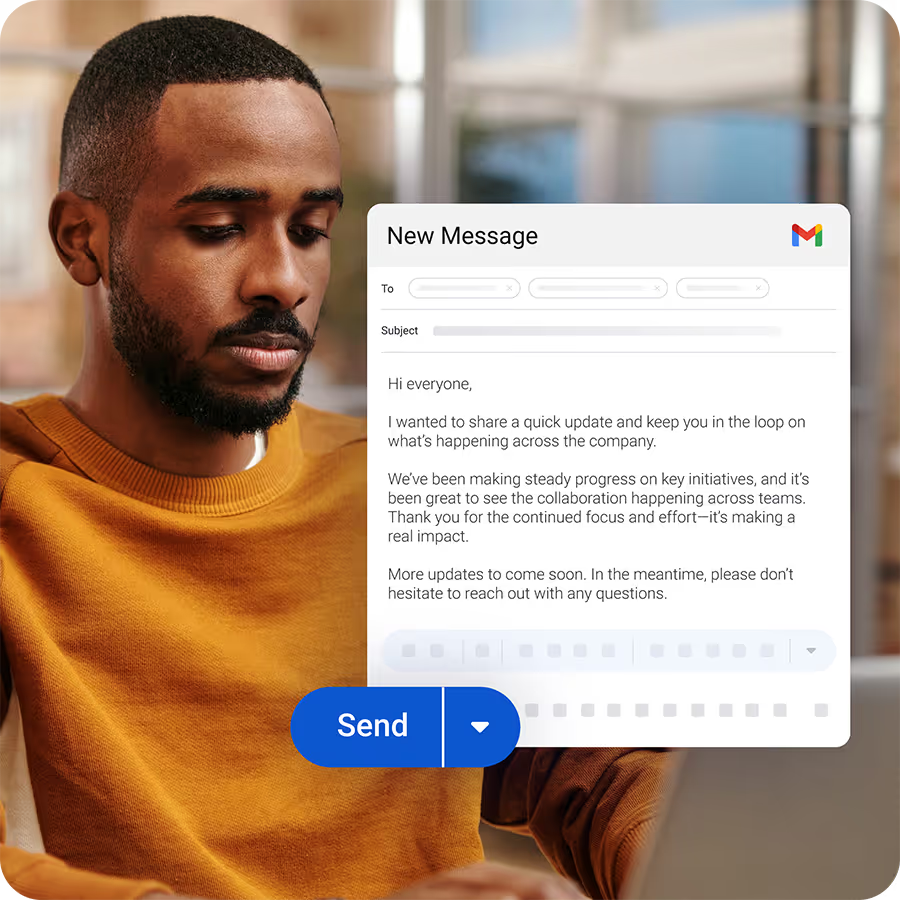
Basically, to schedule an employee email in Gmail, you should first compose the email and then click the arrow next to the Send button to select “Schedule send”. You can then choose a pre-set time or select “Pick date & time” for a specific send date and time, and Gmail will send the email automatically.
Step 1: Compose a New Email
On a computer, go to Gmail and click the “Compose” button.
Write your email message, being sure to include a subject and the recipients you want the email to go to.
On a mobile device, open the Gmail app and tap “Compose”. Create your email as described above.
Open Gmail → click Compose → create your message
Step 2: Use the “Schedule Send” Feature
When you’re happy with your message created on a computer, click the down arrow next to the “Send” button. Select “Schedule send” from the menu and then choose a scheduling option, such as “Tomorrow morning,” or select “Pick date & time” for a custom date and time.
On a mobile device, tap the three dots (More options) in the top right-hand corner. Confirm your schedule-send selection or simply tap “Schedule Send” to confirm your choice. Choose the desired send time and date from the options provided.
Click the arrow next to Send → choose Schedule send
Pick a suggested time or choose a custom date/time
Step 3: Manage Scheduled Emails
When learning how to schedule an email in Gmail, it’s important to focus on how to manage your scheduled emails so you can make changes if needed.
On a computer, go to Gmail and click on the Scheduled folder in the left-hand menu. Select the email you want to update and click Cancel send in the top-right corner. You can then edit your message and reschedule it by clicking the arrow next to “Send” and selecting “Schedule send” again.
On a mobile device, open the Gmail app and tap the menu icon (three horizontal lines) in the top left. Tap “Scheduled”, select the email you want to edit, and tap “Cancel send”. After making your changes, tap the three dots (More) in the top right and choose “Schedule send” to confirm a new date and time.
Scheduled emails are sent according to the time zone you selected and may be delivered a few minutes after the scheduled time.
Scheduled emails sit in the Scheduled folder until they’re sent
You can edit, cancel, or reschedule from this folder
The Limitations of Gmail Email Scheduling: No Recurring or Campaign Scheduling
While email scheduling in Gmail is a useful feature for sending messages at a later time, it has several obvious limitations for internal communicators. Gmail only allows you to schedule one email at a time, which means there’s no built-in way to:
- Set up a recurring send, such as a weekly HR newsletter or leadership update.
- Automate a campaign, like a multi-part onboarding or training sequence spread over several weeks.
- Optimize send times based on employee engagement data or analytics.
These limitations create a major pain point for internal communication teams that often send repeat messages. Without automation, they must manually re-create, re-schedule, and track each email. This potentially wastes hours that could be spent on strategy, storytelling, or employee engagement.
Why Recurring Scheduling Matters for Internal Comms
For internal communicators, consistency is key. Many departments rely on recurring employee emails to keep information flowing and teams aligned. For example:
- HR: Weekly policy updates, benefits reminders, and compliance notices.
- IT: System maintenance alerts and monthly technology updates.
- Leadership: Regular CEO messages, department news, or strategy updates.
Without recurring scheduling, this consistency breaks down. Communicators must manually recreate and reschedule the same messages, risking missed send times, uneven communication rhythms, and decreased employee engagement. Reliable automation ensures employees receive timely, predictable updates that reinforce connection and trust across the organization.
The Cerkl Broadcast Solution to Recurring Gmail Scheduling
Cerkl Broadcast eliminates the limitations of one-time email scheduling in Gmail by giving internal communicators full control over automation, timing, and reach, all from one intuitive platform.
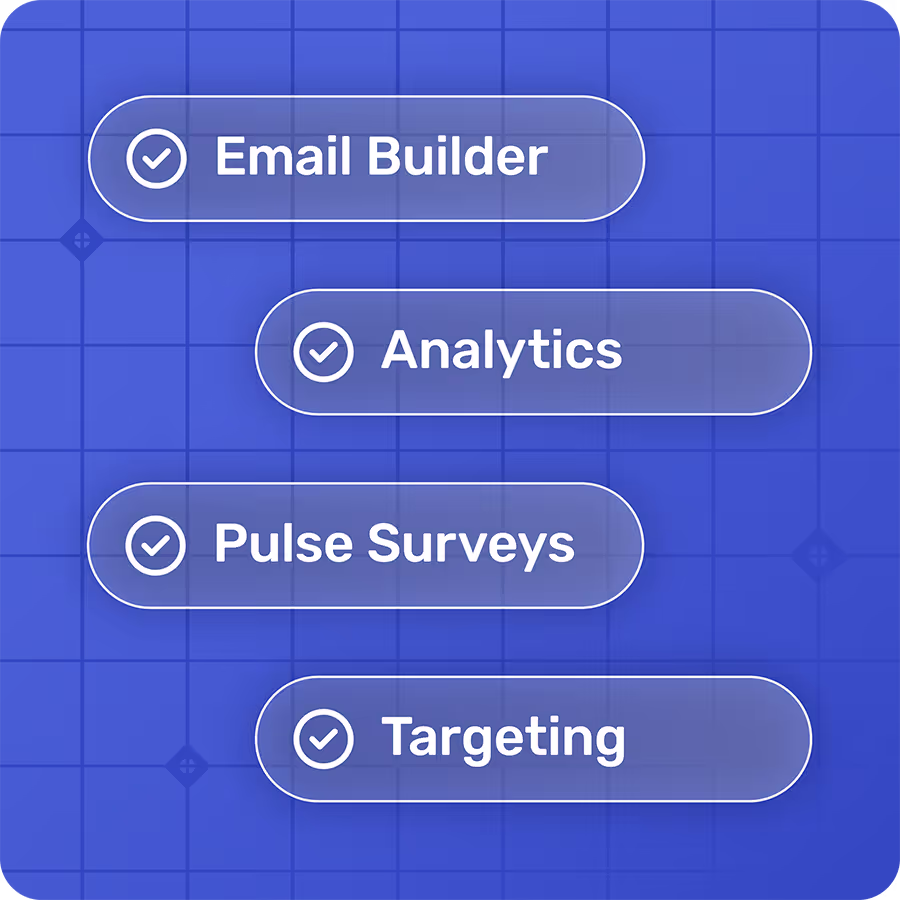
- Campaign Scheduling: Plan and automate multi-message campaigns in advance, ensuring each update, announcement, or reminder is delivered exactly when it should be.
- Recurring Sends: Schedule newsletters, reminders, or leadership updates to send automatically on a weekly, monthly, or custom interval. There is no manual rescheduling required.
- Optimal Send Times: Let AI determine the best delivery window based on employee engagement patterns. That way, your messages reach people when they’re most likely to open and read them.
- Omnichannel Options: Go beyond Gmail by delivering messages through multiple channels like email, mobile app, Microsoft Teams, intranet, or personalized MyNews Digests.
- Analytics: Track open rates, clicks, acknowledgements, and overall campaign performance to measure impact and continuously refine your strategy.
With Broadcast, recurring scheduling isn’t just automated. It’s a strategic benefit.
Gmail vs. Cerkl Broadcast for Employee Email Scheduling
Here’s a quick window that visually shows the differences between what Gmail and Cerkl Broadcast can achieve when it comes to employee email scheduling.
| Feature | Gmail | Cerkl Broadcast |
| One-time scheduling | Yes (Schedule Send) | Yes |
| Recurring scheduling | Not supported | Weekly, monthly, custom |
| Campaign scheduling | Not supported | Multi-message campaign automation |
| Optimal send times | Not available | AI-powered delivery optimization |
What’s Next
If you’re ready to save time and maintain consistent communication without manually rescheduling the same messages, automation is the next step. Once your scheduling is streamlined, the next challenge is measuring impact. Our free Internal Comms Metric Guide shows you which metrics matter most and how to use data to strengthen your communication strategy.
Gmail was never designed for internal comms. Foundations was - and it's 100% free.
Foundations helps internal communicators send targeted employee emails, measure engagement, and collect feedback. No credit card. No setup fees. No contracts.
Learn more about FoundationsFaq
How do I schedule an email to go out at a later time?
Compose your message, then click the arrow next to the “Send” button and select “Schedule send”. Choose one of the suggested times or set a custom date and time for delivery.
How to find a scheduled email on Gmail?
Go to the “Scheduled” folder in the left-hand menu on your computer or tap “Scheduled” in the Gmail app menu. There, you can view, edit, or cancel any emails that are waiting to be sent.
Can Gmail send automated emails?
Gmail allows you to schedule one email at a time, but it doesn’t support fully automated or recurring email sequences. For ongoing communications or campaigns, you’ll need a dedicated automation tool like Cerkl Broadcast.



.avif)





.avif)