How to Create and Use Company-Wide Outlook Email Templates
How to Create and Use Company-Wide Outlook Email Templates
This article explains creating and managing Outlook templates. It is purely email-focused. The challenge is improving email efficiency. It aligns with email optimization.
Written By:
Cerkl Research Team
Published:
November 20, 2025
Send employee emails from Outlook?
Foundations adds targeting, engagement analytics, and pulse surveys to the Outlook emails you're already sending. Upgrade your internal email game with Foundations. Oh, it's free too.
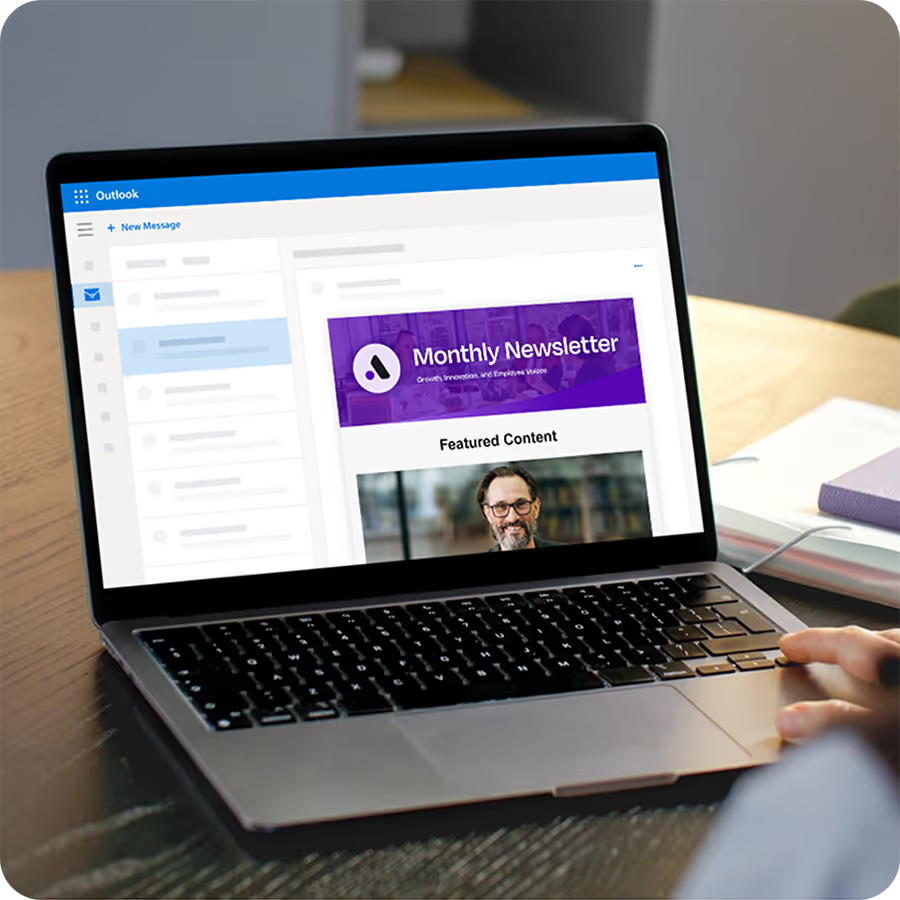
Outlook templates streamline recurring internal communication. They allow communicators to create, save, and reuse layouts that promote consistency and save time across repeated messages.
Reusable templates support efficient updates. From onboarding welcomes to crisis alerts and company-wide announcements, templates help maintain a polished and professional tone.
They strengthen alignment across departments. Consistent messaging from HR, IT, and leadership builds trust, reinforces brand identity, and ensures clarity across all employee communications.
They reduce errors in fast-paced communication cycles. Using approved templates helps avoid formatting mistakes, broken links, and missing details during time-sensitive updates.
Modern communication needs go beyond Outlook’s limitations. Outlook templates lack personalization, drag-and-drop editing, analytics, and multi-channel delivery - pushing communicators toward platforms with branded design, automation, and measurable engagement.
***
Microsoft Outlook remains one of the most widely used email tools for internal communication. It’s familiar, trusted, integrated with many corporate environments, and supports distribution lists, folders, and scheduling. But for many internal communicators, Outlook falls short when it comes to professional, branded employee comms. Standard Outlook emails tend to be plain, text-heavy, or manually formatted. They often lack reusable design, brand consistency, and templated layouts tailored for recurring internal messages.
Communicators regularly need reusable templates for recurring messages. These include crisis updates, onboarding sequences, organisational-change announcements, leadership messages, team-wide news, and routine internal newsletters. With reusable templates you gain time-savings, brand consistency, and reduced errors (for example, forgetting a key paragraph or link). This is all vital when you’re working under time pressure, or when you must hit broad employee audiences consistently.
At the same time, you’ll quickly encounter the limitations of using Outlook alone for this kind of work. Outlook does support templates, typically (though only in a very basic form) lacks drag-and-drop layout, may require technical or design skills, and is not built from the ground up for branded internal-comms templates. As the outbound sales automation platform, Alore points out, when businesses use email templates, they can see as much as a 20% increase in efficiency and a 30% reduction in email errors. However, while Outlook templates can boost efficiency, they also require manual setup and don’t always embed full brand styling or automated formatting.
In this post we’re going to walk through:
Why (and when) you should create company-wide Outlook templates for email.
How to create and use templates within Outlook (step-by-step).
The limitations of the native Outlook template approach.
How Cerkl Broadcast offers an alternative or enhancement, making professional template design simple, shareable, consistent and scalable.
Why Email Templates Matter for Internal Communicators
Reusable email templates aren’t just time-savers, they’re strategic tools for internal communicators. When designed thoughtfully, they make every message look professional, stay on brand, and ensure that employees receive clear, consistent information no matter who’s sending it.
Gallagher’s 2025 Employee Communications Report reinforces this, noting that consistent, well-structured communication builds employee trust and drives stronger engagement across dispersed workforces. The report highlights that clarity and repetition are essential in helping employees connect with business priorities and values - something reusable templates naturally support.
For instance, TextExpander, which empowers busy professionals and teams to accelerate repetitive tasks, states that using well-designed internal email templates can make communications more consistent, professional, and efficient.
Consistency
Templates ensure all employee messages reflect the same brand tone, design, and professionalism. Whether a message comes from HR, IT, or leadership, a unified look will reinforce trust and brand identity. Consistency also helps employees instantly recognize official communications, cutting through inbox noise and boosting engagement.
Efficiency
Creating a well-designed template upfront saves hours of repetitive work later. Instead of formatting every message from scratch, communicators can focus on content quality and timing. Templates streamline recurring messages such as onboarding emails, company updates, and policy reminders, reducing errors and increasing speed to send.
Alignment
Templates help HR, IT, and leadership communicate with one unified voice. By following shared layouts and tone guidelines, teams avoid fragmented or contradictory messaging. This alignment strengthens organizational credibility and ensures that every internal email supports the company’s values, goals, and overall communication strategy.
Error Reduction
When internal teams reuse approved templates, they reduce the risk of formatting mistakes, broken links, or missing content. Pre-tested templates also minimize compliance or accuracy issues, ensuring that essential details like policy language, links, and sign-offs are always correct and up to date.
Foundations gives internal communicators a drag-n-drop email builder plus 10+ internal comms email templates. Say goodbye to fighting Outlook/Gmail formatting! Oh, Foundations is free (forever).
Reusable Outlook templates give internal communicators a head start on their most common messages. By designing a few core templates, each aligned with your brand, tone, and purpose, you can ensure every department communicates clearly and consistently.
During urgent or unexpected events, a preapproved template ensures messages go out fast and stay consistent in tone and structure. A clear subject line, concise body text, and leadership-approved sign-off will reduce confusion and help employees know exactly what to do. Having this template ready can save precious time when accuracy and reassurance are critical.
Organizational Change Announcement
Whether announcing a leadership transition, restructuring, or sharing new strategic direction, templates provide a calm, confident structure for sensitive news. Include placeholders for leadership quotes, timelines, and employee impact. A consistent layout helps maintain trust and prevents tone discrepancies when multiple departments communicate about the same changes.
Onboarding Email
Onboarding templates help new hires feel welcome from day one. These templates can outline next steps, share login details, or introduce company culture. By reusing a branded template, HR will ensure every employee receives the same polished, informative introduction, reinforcing the company’s professionalism and warmth.
Event Reminder
Templates for internal events, such as town halls, training sessions, or wellness activities, save time and keep every invite consistent. Include key event details (date, time, location, registration link) and a clear call to action. Consistent reminder formats also make it easier for employees to spot official company invitations in crowded inboxes.
Employee Recognition Email
Recognition templates celebrate milestones, achievements, or outstanding performance. By maintaining a uniform design and tone, these emails feel official and inclusive, whether sent from HR or a team leader. Regular recognition using a consistent format helps reinforce positive culture and employee engagement across the organization.
How to Create an Email Template in Outlook
Creating an email template in Outlook helps internal communicators save time and maintain message consistency. However, the process differs depending on which version you’re using.
Whether you’re on the classic desktop app, the web version, or working through IT-managed templates, here’s how each method works and what to watch out for:
For Classic Outlook (Desktop App)
Compose a new email.
Add your subject line, layout, and content (text, links, minimal images).
Go to File → Save As → Outlook Template (.oft).
To reuse: open Home → New Items → More Items → Choose Form → User Templates in File System.
Limitation: There are very few design options. Layouts look plain and require manual formatting every time.
For Outlook on the Web (Outlook.com / Microsoft 365)
Open Outlook on the web → click New Mail.
Draft your message content.
Click More Options (⋯) → My Templates → + Template.
Give it a name, paste your content, and save.
Limitation: Outlook templates are text-only. There is no consistent branding, no logos, and no HTML structure.
For Organizational Distribution (via IT or Admin)
Microsoft 365 admins can push shared Outlook templates via add-ins or signatures.
Requires admin access and HTML knowledge.
Usually reserved for official communications, not everyday comms.
Limitation: Requires IT support; not easily editable by communicators.
Common Outlook Template Limitations
While Outlook offers basic template functionality, it wasn’t built with internal communications in mind. The features work for quick message reuse but fall short when you need scalable, branded, and measurable communication across your organization.
Here are some of the key limitations communicators face:
No Professional Branding
Outlook templates can’t consistently maintain your company’s fonts, colors, or design elements. Each message may look slightly different depending on who edits or sends it, weakening brand recognition and professionalism. To maintain consistent branding across every email, many organizations also rely on office 365 signature management to standardize signatures and contact information.
Static and Manual
Templates in Outlook are static. They lack dynamic fields for names, departments, or roles. This means that personalization must be done manually every time. For large audiences, this makes targeted communication virtually impossible.
No Drag-and-Drop Design
Outlook doesn’t offer visual design tools. Building a layout with columns, banners, or buttons requires manual formatting or HTML coding, which can be time-consuming and prone to errors.
No Analytics
Unlike dedicated internal comms tools, Outlook offers no visibility into engagement metrics. You can’t track open rates, click-throughs, or employee interaction, making it difficult to measure impact or improve future messages.
No Multi-Channel Use
Outlook templates are limited to email only. You can’t repurpose them for mobile, Teams, or intranet delivery, forcing communicators to recreate the same message across multiple platforms manually.
Why Internal Communicators Need More Than Outlook Templates
Internal communications today goes far beyond sending a single company-wide email. Communicators are managing multiple audiences, channels, and recurring message types - all while trying to maintain consistency, speed, and impact. Outlook templates, while helpful for basic reuse, simply don’t meet the evolving needs of this role in the sophisticated, contemporary workplace.
Modern internal comms demand design quality, personalization, and agility. Employees expect professional, branded messages that look as good as they read. Communicators need to segment audiences, tailor tone and visuals, and deliver information where employees already are, whether that’s to inboxes, mobile devices, or collaboration tools.
What internal communicators really need are tools that provide:
Ready-to-use, branded templates that ensure visual consistency and reduce manual design time.
Drag-and-drop editing so communicators can focus on content, not HTML or formatting.
Dynamic personalization to automatically tailor messages based on role, location, or interest.
Multi-channel reach across email, mobile, Teams and other platforms, or intranet from one central platform.
Real-time analytics to measure engagement, improve strategy, and demonstrate impact.
These capabilities turn internal emails from static updates into dynamic communication experiences - something Outlook alone wasn’t designed to deliver.
The Cerkl Broadcast Solution to Outlook Email Templates
Cerkl Broadcast offers the professional-grade design flexibility that Outlook lacks. And it’s purpose-built for communicators who want to design, personalize, and measure internal messages without relying on IT or external design tools.
Where Outlook templates are static, Broadcast templates are dynamic, branded, and effortless to reuse. Communicators can design once, apply brand styling automatically, and deliver messages across every channel employees use - all from one intuitive platform.
Branded, Drag-and-Drop Templates
Choose from professionally designed layouts built specifically for HR updates, crisis communication, culture stories, or leadership messages. Each template supports your brand fonts, colors, and logos with no coding or IT help required. With true drag-and-drop editing, even complex layouts are easy to build and reuse in minutes.
Dynamic Personalization
Broadcast lets you personalize every message with fields such as name, department, or location, creating a tailored experience at scale. Instead of manually editing templates for each audience, dynamic personalization ensures relevance and connection automatically.
Template Library for Every Purpose
Access a ready-to-use library for recurring communication needs, from onboarding and recognition emails to crisis updates and policy reminders. Templates can be cloned, customized, and shared across teams for faster collaboration and consistent delivery.
Multi-Channel Publishing
Unlike Outlook, Broadcast templates aren’t limited to email. You can publish the same branded message through multiple channels including email, mobile apps, Microsoft Teams, intranet, or as part of a personalized MyNews digest. This ensures your message reaches every employee where they’re most likely to engage.
Built-In Analytics
Every message sent through Broadcast comes with detailed analytics. Track opens, clicks, and acknowledgements to see what resonates, when, and with whom. These insights help communicators refine strategy, prove value, and continuously improve message performance.
Benefit: Build, brand, and send employee emails that look polished and perform better, without spending hours formatting in Outlook or waiting on IT support.
Outlook Templates vs. Cerkl Broadcast Templates
While Outlook offers basic tools for creating and reusing messages, it’s clear that internal communicators need more than simple text layouts. Cerkl Broadcast expands those capabilities, bringing design flexibility, personalization, and analytics together in one platform.
The comparison below highlights how each tool supports (or limits) the needs of modern internal communication teams:
Feature
Outlook
Cerkl Broadcast
Template design
Plain, text-based
Branded, drag-and-drop layouts
Personalization
Manual, limited
Dynamic personalization fields
Branding
Inconsistent, manual
Consistent brand styling
Ease of use
Requires IT or HTML
No-code, intuitive interface
Multi-channel use
Email only
Email, Mobile, Teams, Intranet
Analytics
None
Full insights: opens, clicks, acknowledgements
Template sharing
Per user
Shared library across the organization
Scalability
One message at a time
Campaigns, recurring, omnichannel
What’s Next
Do you want to elevate your internal emails beyond basic updates? Download Employee Newsletters: A Comprehensive Guide for Internal Communicators, your free resource to understand the evolving role of newsletters in driving engagement, building culture, and creating a better employee experience.
Outlook works for email. Internal communication needs more.
Why use a tool not built for internal communication when Foundations is free? No credit card, no setup fees, no contracts.
How do I create a mail template in Outlook? To create a template, compose a new email, add your content and layout, then go to File → Save As → Outlook Template (.oft). You can reuse it by navigating to Home → New Items → More Items → Choose Form → User Templates in File System.
Where can I find my Outlook email template? Your saved templates are located under Home → New Items → More Items → Choose Form → User Templates in File System, which stores all .oft files you’ve created.
How can I get pre-made email templates for free? Free pre-made templates are available through Microsoft’s template gallery and reputable business communication websites. These can be customized directly in Outlook or imported into tools like Cerkl Broadcast for branded, professional use.
Did you enjoy this content? Please share it with your internal comms friends and colleagues. Just click on any of the links below.



.avif)