Yes, you can mail merge in Outlook and Gmail. A personalized mail merge in Outlook runs from Word and sends only through classic Outlook, so if you've moved to the new Outlook for Windows, you'll need classic Outlook for the send. Gmail has the merge built in beside the To line on eligible Workspace plans, and you insert tags like @firstname as you type. Both work well for a small, occasional send, but a recurring email to all employees asks for more than either one was built to do.
What is mail merge, and why use it for employee email?
A mail merge takes one message and sends a separate copy to each person on a list, filling in that person's own details as it goes. The open enrollment reminder says "Hi Priya" and names Priya's benefits deadline instead of everyone's. Microsoft's guide to mail merge in Word describes the mechanics in one line, "Word sends an individual message to each email address."
Internal communicators reach for it when the message is the same but the specifics change from person to person, such as the start date and manager name in an onboarding email or a location-specific parking notice that would get lost in a generic all-staff note. Deciding which details are worth personalizing is its own question, and the case for internal email personalization covers what to change per person and why it lifts attention.
How to mail merge in Outlook
Outlook doesn't have a personalized merge of its own. The merge happens in Word, and Word hands the finished messages to classic Outlook to send, so set classic Outlook as your default email program before you start. Microsoft's page on using Outlook contacts as a data source for a mail merge says Word's mail merge "needs classic Outlook to read your Outlook contacts and to send the merged email messages." If your organization has moved everyone to new Outlook, this route won't send until classic Outlook is back on the machine.
Here is how to mail merge in Outlook through Word on Windows.
- Build your list in Excel with one row per employee, a column for email addresses, and a column for each field you plan to use, such as first name or location.
- In Word, go to Mailings > Start Mail Merge > E-mail Messages.
- Go to Mailings > Select Recipients and choose Use an Existing List to pick the spreadsheet. You can use Outlook contacts instead, but only in classic Outlook.
- Write the message, then go to Mailings > Greeting Line, or insert other merge fields where the personal details belong. Word won't style the fields for you, so format them by hand afterward.
- Choose Preview Results and step through the recipients one at a time to check that names and fields land where they should.
- Choose Finish & Merge > Send E-mail Messages, pick the email address column in the To box, add a subject line, and send.
Two limits catch people the first time. Word's email merge can't CC or BCC anyone, and it can't carry attachments, so put the policy PDF in a shared folder and link to it in the body. Word also needs an email address for each intended recipient in its data source, and an Outlook distribution list is one address standing in for many people, so the steps to create and edit a distribution list in Outlook won't give Word a list it can personalize.
Can you mail merge in new Outlook?
Not with personalized fields. New Outlook for Windows has a Start mail merge option under the arrow next to Send, and it sends each recipient their own copy of the message, but Microsoft notes that it "doesn't insert personalized fields from your contacts." The new and classic Outlook feature comparison lists mail merge as "Partially Available" in new Outlook and "Available" in classic. If your email needs to say "Hi Priya," the documented route is Word plus classic Outlook, which means switching back to classic for the send.
How to mail merge in Gmail
Gmail has mail merge built in, though not on every plan. Per Google's help page on sending personalized emails with mail merge, you need Workspace Individual, Business Standard or Plus, Enterprise Standard or Plus, or Education Standard or Plus, and the feature replaces Gmail's older multi-send mode.
Here is how to mail merge in Gmail.
- Compose a new message. On the right of the To line, click Use mail merge and turn it on.
- Add recipients in the To line, or click Add from a spreadsheet and pick a Google Sheet. Contact details have to sit in the first tab and contain only text.
- In the message, type @ and select a merge tag such as @firstname.
- If a recipient is missing data for a tag, Gmail shows an error. Fix the row in the sheet or set a default value, so "Hi @firstname" becomes "Hi friend" for anyone without a first name.
- Send.
Know four things before you hit send. Gmail mail merge takes up to 1,500 recipients in the To line per message, and of a Workspace account's daily limit of 2,000 outgoing messages, the last 500 are reserved for regular email, so a merge can't use all of it. Every merge email gets an unsubscribe link added at the bottom automatically. Attachments are allowed and go into each recipient's copy. Cc and Bcc are tight, with one recipient per message and none at all when recipients come from a spreadsheet. If you already keep employees in a Gmail contact group, the steps to create a contact group in Gmail cover that setup, though Google's merge page only documents adding people in the To line or from a sheet.
Managing employee lists gets messy - fast.
Foundations lets you target employee emails using roles, departments, or locations without manually updating Outlook or Gmail lists.
Learn more about FoundationsWhere does mail merge break for employee email?
For a one-off send to a few dozen people, a spreadsheet and either inbox will get a personalized email out the door in under an hour. The trouble starts when the merge becomes the way you send to the whole company every week.
The first problem is the list. A merge spreadsheet is a snapshot of the org on the day someone exported it, so Monday's new hires aren't in it and the people who left last month still are. Nothing keeps that file current except a person remembering to re-export it before every send, and that person is usually you.
Targeting is the second problem. "Only the Ohio warehouse" or "everyone who started this year" means filtering the sheet by hand and hoping you didn't drop a row. Do that for three audiences a week and the spreadsheets multiply, which is one more reason sending to all employees fails in Gmail and Outlook as a default.
Sending limits come next. A merge sends one message per person, so a whole-company merge counts every employee against your daily cap. The Outlook sending limits and Gmail sending limits posts lay out where those caps sit and what happens when you hit one.
Merge fields fail quietly in Word. A blank cell in the first-name column can send "Hi ," and a mapped-wrong column sends Priya's email to Priya with Marcus's name on it. Word's check is the preview, one recipient at a time, which works for a list of, say, 40 people and falls apart at 800. Gmail handles this better, because it flags missing data before sending and lets you set a default.
Gmail has its own catch. Every Gmail merge carries an unsubscribe link at the bottom, which is an odd thing to attach to a payroll change your employees need to read.
The last gap is that you can't see who read it. One-to-one sends leave nothing rolled up, so no report tells you that, for example, 74 of the 86 people at the warehouse opened the safety notice. Read receipts don't fill the gap, because Microsoft's page on read receipts in Outlook says recipients can decline to send them and "there is no way to force a recipient to send a read receipt." The workarounds for Outlook email tracking and Gmail analytics go further. Even good open and click data only shows who engaged, and confirming who read a message takes something the employee does on purpose.
What should a free layer on top of your inbox give you?
Before you look at any tool, decide what the merge should have been doing for you. A reasonable bar for recurring employee email covers six things.
- Personalization fields with fallbacks, and a warning before send when someone is missing data
- Audiences that re-sort themselves as employee data changes, instead of a spreadsheet you re-export
- Targeting by location or start date without filtering a sheet by hand
- A sample send to yourself before the real one
- Per-employee delivers, opens and clicks for every send
- A way to confirm a read when the message matters most
Keep the inbox. Employees should still read in Outlook or Gmail, because that's where they already are. You add a layer behind it for building the send and measuring what happened.
How Foundations fills the gaps
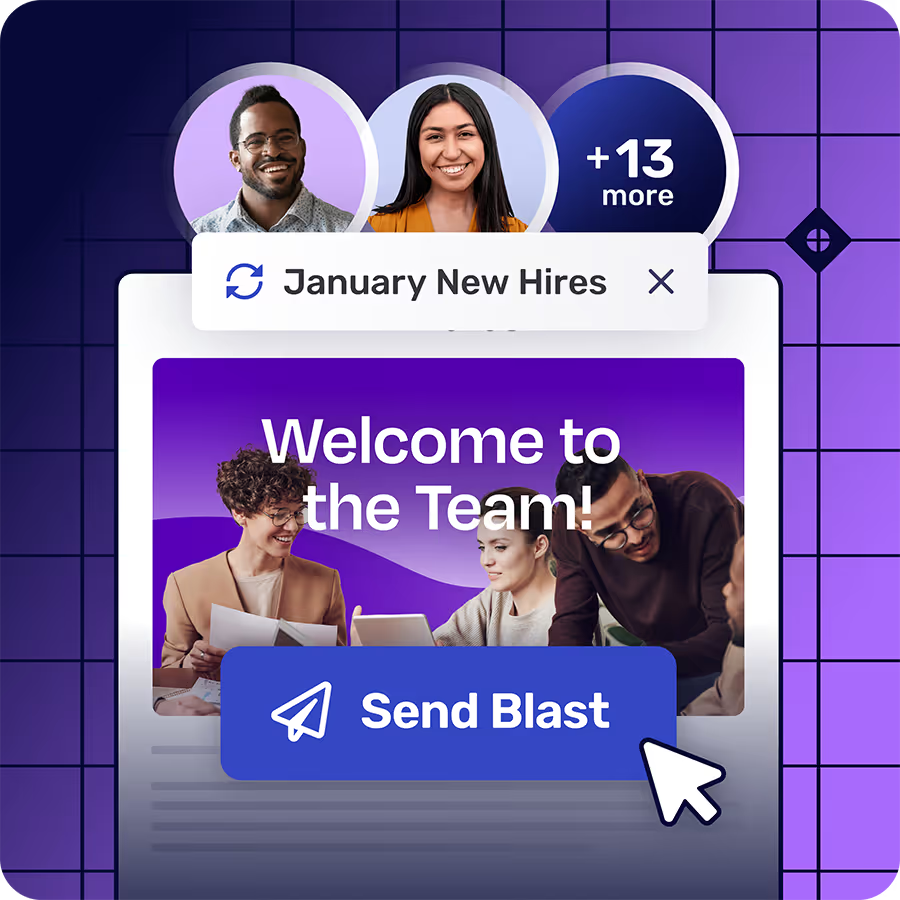
Foundations is the free plan of Cerkl Broadcast, and it covers that checklist without asking anyone to give up Outlook or Gmail. You build the email as a Blast, it lands in each employee's inbox like any other message, and the targeting and measurement happen in Broadcast instead of in a spreadsheet.
Personalization works the way you wanted the merge to. You can place Personalization Fields in the body or the subject line, up to 20 unique fields per Blast, and set fallbacks so a missing first name sends a sensible default instead of a raw token. Fallbacks can be set org-wide for every attribute, and per Blast for email, first name and full name. When audience members are missing data, Broadcast warns you before sending. You still fix the data yourself, and the warning gives you time to do it.
Audience Manager takes over the list. In Audience Manager, you build dynamic segments on any enabled attribute, and they update as that data changes, so "Ohio warehouse" stays accurate once the attribute is right. You can also import a CSV and enable up to 50 Manual Attributes as personalization fields, which is how the extra columns in your merge sheet come along. A CSV-imported list is only as current as its last upload, so re-import when your data changes. A Blast can go to everyone or to a mix of segments and up to 20 named individuals, and anyone who sits in two overlapping segments gets one copy.
Measurement is where the merge never had an answer. Broadcast's email analytics show unique opens and unique clicks for each recipient, along with delivery and bounce data. For the messages that need proof, acknowledgments give you a timestamped read confirmation, recorded when the employee clicks through and confirms.
What the free plan doesn't include
Foundations is free forever with no credit card. It includes 5,000 email sends a month. Overages run $0.09 an email, but only if billing details are on file; without them, sends stop at the cap. You get 3 communicator seats on one instance, and Foundations supports a single email domain. SSO is an add-on, and calendar invites and API access aren't included. If you outgrow it, the upgrade happens in place, so nothing you've built has to be rebuilt.
How to move your merge into Foundations
Your merge spreadsheet already has most of what you need, so the move fits in an afternoon.
- Export the merge spreadsheet as a CSV with Email as the first column, and rename each extra column's header to a Manual Attribute (Manual 1, Manual 2 and so on).
- In Audience Manager, go to Audience > Import List and upload the CSV.
- In Settings > Attributes, give each Manual Attribute a display name and turn it on as a personalization field.
- Rebuild the email as a Blast, insert Personalization Fields where the merge fields used to be, and set a fallback for every field you use.
- Send a sample to yourself and read it the way an employee would.
- Send it, then check Insights to see who opened and clicked.
Employees still read in Outlook or Gmail, and you can still run a quick Word or Gmail merge for the one-off note to twelve people. The recurring all-staff send is the part that moves, and it gains audiences that stay current and a report at the end. Start your next personalized send on Cerkl Broadcast Foundations, free.
If you're frustrated with Outlook or Gmail for your employee emails, we understand.
That's why we built Foundations. Purpose-built for internal email with all the features you wish you had - drag-and-drop email builder, analytics, employee segmentation and much more. All for free (forever). No credit card, no contracts, no setup fees.
Learn more about FoundationsFAQ
Can I mail merge in new Outlook?
Not with personalized fields. New Outlook's Start mail merge option, under the arrow next to Send, sends each recipient an individual copy but doesn't insert personalized fields. For a merge that fills in names or other details, Word's mail merge needs classic Outlook to send the messages.
Does Gmail have mail merge?
Yes, it's built in on eligible Google Workspace plans, which are Workspace Individual, Business Standard and Plus, Enterprise Standard and Plus, and Education Standard and Plus. You turn it on with Use mail merge beside the To line and insert tags such as @firstname by typing @.
How many emails can I mail merge per day?
In Gmail, you can add up to 1,500 recipients per merge message, and a Workspace account's daily limit is 2,000 outgoing messages, with 500 of those reserved for regular email. Outlook's caps depend on your account, and the Outlook sending limits post covers them.
Can I add attachments to a mail merge?
Not in Word's email merge, which sends through Outlook, so put the file in a shared location and include a link instead. Gmail's mail merge does allow attachments, and each recipient's copy carries the file.
Can I see who opened a mail merge?
Not in aggregate. Each merged email is a separate message, and Outlook read receipts can be declined by the recipient and can't be forced. A tool with per-recipient insights shows who opened and clicked, and acknowledgments confirm who read the message.
Did you enjoy this content?
Please share it with your internal comms friends and colleagues.
Just click on any of the links below.